


Disclaimer: This article is for educational purposes only and does not constitute financial advice. No indicator or platform guarantees profitable trading outcomes. Past performance of any setup does not guarantee future results.

TradingView charts show up everywhere, and the reasons run deeper than aesthetics. This TradingView review and guide is built to give you three things: an honest look at whether the platform lives up to the hype, a hands-on walkthrough so you can actually use it from day one, and a focused breakdown of the best indicators for day trading setups.
What Is TradingView and Why Do Traders Use It?
Most charting platforms feel like they were designed by engineers who’ve never placed a trade. TradingView broke that mold, and that’s a big part of why it caught on so quickly.
Platform Overview
TradingView is a browser-based charting and analysis platform covering stocks, forex, crypto, futures, and more. There’s no bulky software to download or install. Open a browser, log in, and your charts are waiting, synced across every device you use.
At its core, TradingView gives you:
- Real-time and delayed market data across multiple asset classes
- A powerful charting engine with dozens of chart types and hundreds of built-in indicators
- Customizable alerts based on price, indicator values, or custom conditions
- A social layer where traders publish ideas, scripts, and analysis
- Pine Script, a proprietary scripting language for building custom indicators and strategies
The platform runs on a freemium model. You can accomplish a surprising amount without paying a cent, but the paid tiers unlock features that genuinely matter once you’re actively day trading.
Who Is TradingView Built For?
TradingView works across a wide range of trading styles, but it shines brightest for two groups: retail traders who want professional-grade charting without the complexity of institutional terminals, and technical traders who lean heavily on visual analysis, indicators, and alerts.
If you’re a day trader, the speed, flexibility, and depth of the charting tools will feel immediately useful. If you’re a fundamental-only investor who rarely glances at a chart, TradingView will probably feel like overkill.
So where does it land in terms of cost versus value? That depends entirely on which plan you choose.
TradingView Plans and Pricing: Free vs. Paid
Choosing a plan can feel like navigating a maze, especially when you’re new to the platform. Here’s the breakdown that actually matters.
Free Plan Limitations
The free tier is surprisingly functional. You get access to the charting engine, a single chart layout, basic indicators, and community content. For someone exploring the platform or building a foundation in technical analysis, it’s more than enough to start with.
That said, the free plan carries real constraints that day traders will bump into quickly:
- Only 2 indicators per chart
- 1 chart per tab (no multi-chart layouts)
- Limited to 3 price alerts
- Ads on the platform
- No intraday data exports
- Server-side alerts are limited
If you’re casually learning, free works fine. If you’re trying to actively day trade with multiple indicators and real-time alerts, you’ll hit those walls fast.
Essential, Plus, Premium, and Ultimate Compared
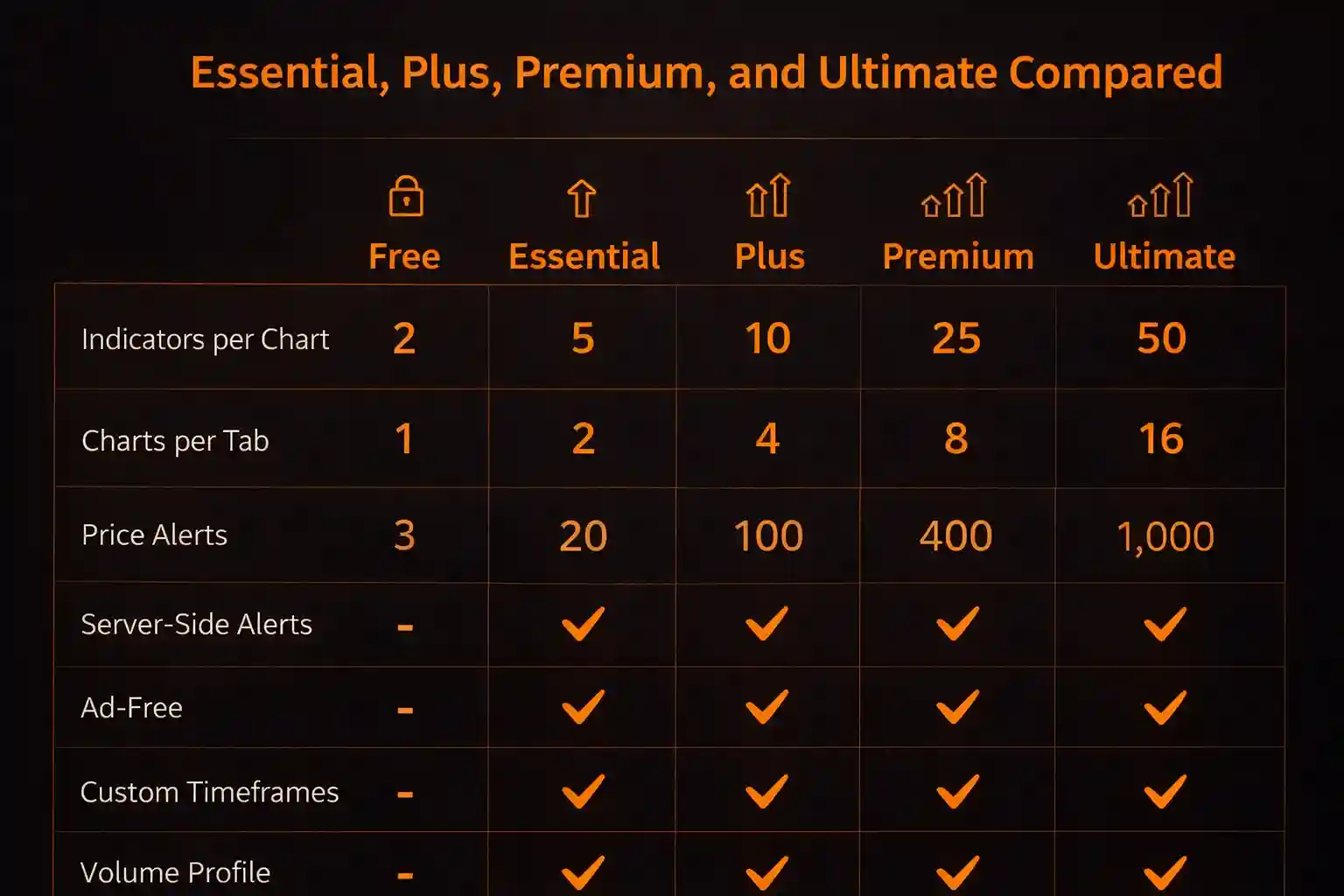
Here’s a simplified comparison of what each plan offers. Note that TradingView separates price alerts and technical alerts, each with their own limits. The counts below reflect price alerts specifically. Features and pricing are subject to change, so always verify on TradingView’s site before purchasing.
Feature | Free | Essential | Plus | Premium | Ultimate |
Indicators per chart | 2 | 5 | 10 | 25 | 50 |
Charts per tab | 1 | 2 | 4 | 8 | 16 |
Price alerts | 3 | 20 | 100 | 400 | 1,000 |
Server-side alerts | No | Yes | Yes | Yes | Yes |
Ad-free | No | Yes | Yes | Yes | Yes |
Custom timeframes | No | Yes | Yes | Yes | Yes |
Volume profile | No | Yes | Yes | Yes | Yes |
Even the jump from Free to Essential is noticeable. Removing ads, gaining server-side alerts, and unlocking Volume Profile alone make it a meaningful upgrade for anyone doing real analysis.
Which Plan Suits Day Traders?
For most day traders, the Plus plan hits the sweet spot. Four charts per tab means you can monitor multiple timeframes or correlated assets at once. Ten indicators per chart gives you enough room to run a solid setup without feeling cramped. And 100 price alerts let you track setups across your watchlist without babysitting every single chart.
If you’re just getting started, Essential is a reasonable entry point. Premium and Ultimate become worth considering once your workflow demands heavier multi-chart usage or complex alert systems across many instruments.
But a plan means nothing if you don’t know how to set the platform up properly. Let’s fix that.
How to Use TradingView: Step-by-Step Setup
The biggest barrier to using TradingView effectively isn’t the cost. It’s the first 30 minutes of confusion when you log in and face a wall of options. Here’s how to cut through it.
Creating an Account and First Login
Getting started is straightforward:
- Go to TradingView.com and click “Get Started” or “Sign Up”
- Register with your email, Google account, or Apple ID
- Choose the free plan to start (you can always upgrade later)
- Complete any profile preferences TradingView asks about (asset interests, experience level)
Once you’re in, you’ll land on the main dashboard. Resist the pull of the social feed or trending ideas for now. Head straight to the chart.
Navigating the Chart Interface
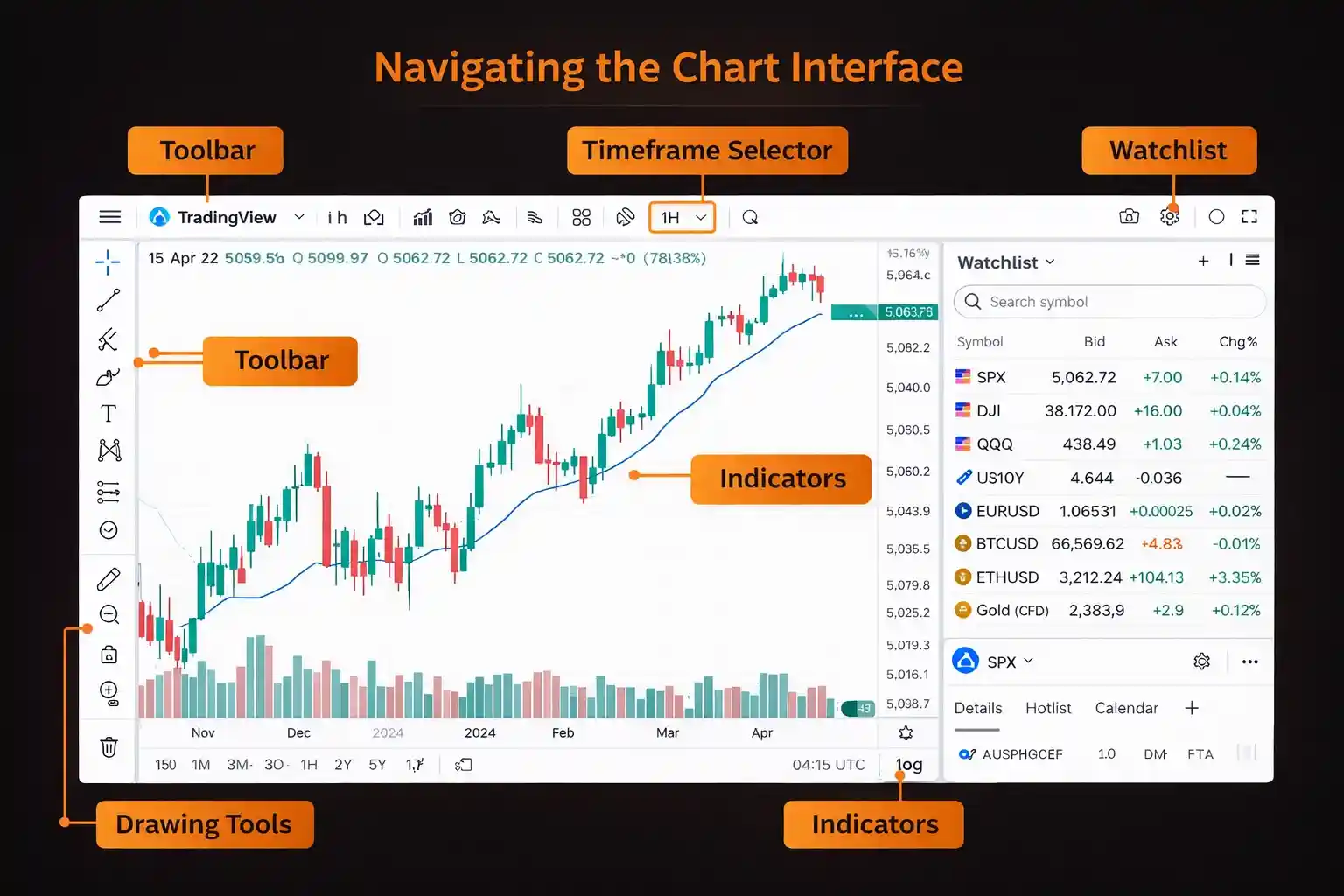
This is where most new users feel lost. The TradingView chart interface packs a lot into one screen, but once you understand the layout, everything clicks into place.
Key areas to orient yourself:
- Top toolbar: Where you switch symbols (tickers), select timeframes, and access chart types. You’ll use this constantly.
- Left sidebar: Your drawing tools live here. Trendlines, Fibonacci retracements, horizontal levels, and more.
- Right sidebar: Your watchlist, alerts panel, and order panel (if connected to a broker). Expand or collapse it as needed.
- Bottom panel: Houses the data window, Pine Script editor, strategy tester, and trading panel.
- Indicator button (“Indicators” at the top): Click to search, browse, and add indicators to your chart.
Spend 10 minutes clicking through each panel. Open things, close things, drag them around. TradingView is highly modular, and the fastest way to learn the layout is simply to interact with it.
Customizing Your Workspace and Layouts
Your default chart setup will look generic. Tailoring it to fit your trading style makes a real difference in how quickly you can read price action.
Start with these adjustments:
- Chart type: Switch to candlestick if it’s not already selected (top toolbar dropdown).
- Color scheme: Right-click the chart background to access settings. Choose a dark or light theme based on your preference, and adjust candle colors so bullish and bearish candles are clearly distinct.
- Timeframe favorites: Click the timeframe selector and star the intervals you use most. For day trading, 1-minute, 5-minute, 15-minute, and 1-hour are common choices.
- Layout: If your plan supports it, set up a multi-chart layout so you can view multiple timeframes of the same asset side by side.
Save your layout once you’re satisfied. TradingView lets you name and store multiple layouts, so you can keep one for pre-market scanning and another for active trading sessions.
Setting Up Alerts
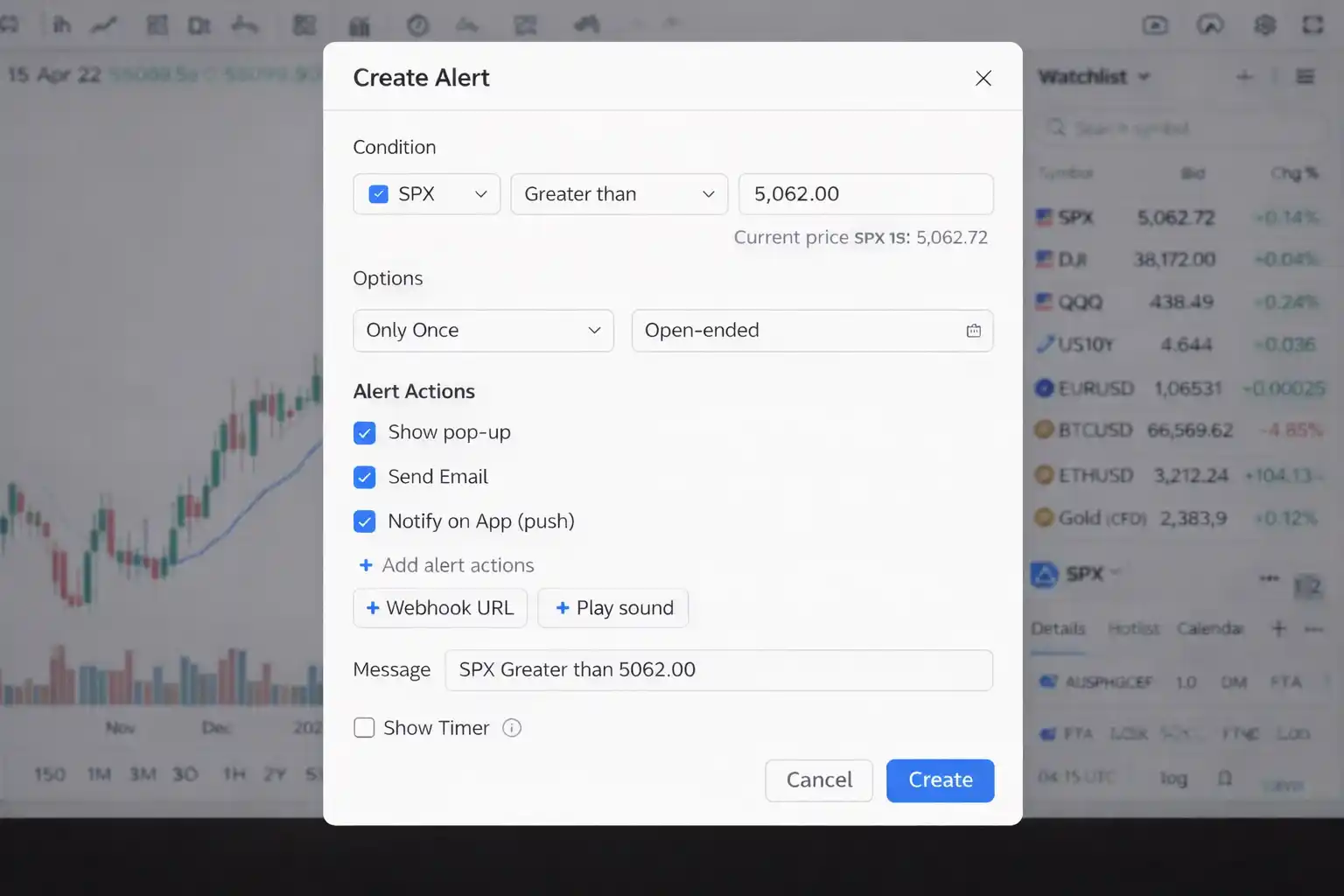
Alerts are one of TradingView’s most powerful features, and most beginners barely scratch the surface. Instead of staring at charts all day waiting for something to happen, you set conditions and let the platform notify you when they’re met.
To create a basic price alert:
- Right-click on the price level where you want the alert on the chart
- Select “Add Alert” from the context menu
- In the alert dialog, set your condition (e.g., “Price crosses above $150”)
- Choose your notification method (pop-up, email, mobile push, or webhook)
- Set the expiration and whether you want the alert to trigger once or every time the condition is met
- Click “Create”
You can also build alerts based on indicator values. For example, you could trigger an alert when RSI crosses above 70 or when MACD crosses its signal line. This becomes incredibly useful once you have a defined day trading strategy and want to automate your watchlist monitoring.
How far can alerts take your workflow? That depends on how well you understand the charting tools behind them.
TradingView Charting Tools Explained
You can have the strongest indicators in the world, but if you don’t understand how to use TradingView’s charting tools, you’re working with one hand tied behind your back.
Drawing Tools and Annotations
The left sidebar is packed with drawing tools. For day trading, you don’t need all of them. Focus on these:
- Horizontal lines: Mark key support and resistance levels.
- Trendlines: Identify directional momentum and channel boundaries.
- Fibonacci retracement: Gauge pullback levels within a trend.
- Rectangle/highlight zones: Mark supply and demand zones or areas of consolidation.
Each tool is customizable. You can change colors, line thickness, and even set them to appear only on specific timeframes. That keeps your chart clean when toggling between higher and lower timeframe views.
Timeframe Selection for Day Trading
Picking the right timeframe is less about finding a “perfect” setting and more about understanding what each one reveals. For day trading, consider this hierarchy:
- 1-minute: Precision entries and exits, but heavy noise.
- 5-minute: The workhorse for most day traders, balancing detail with readability.
- 15-minute: Solid for spotting intraday trends and structural shifts.
- 1-hour: Your context candle, helping you understand the bigger picture within the trading day.
Most experienced day traders work with at least two timeframes simultaneously. They’ll read structure on the 15-minute chart and time entries on the 5-minute or 1-minute. TradingView’s multi-chart layouts make this seamless.
Using Multi-Chart Layouts
If your plan supports multiple charts per tab, multi-chart layouts quickly become essential for day trading. You can view the same ticker across different timeframes, or watch correlated assets side by side.
To set up a multi-chart layout:
- Click the layout icon in the top toolbar (it looks like a grid)
- Select your preferred arrangement (2 charts side by side, 4 charts in a grid, etc.)
- Load your ticker and timeframe in each panel
- Optionally, enable “Sync Symbol” so all charts update when you switch tickers in one panel
This setup lets you see the forest and the trees at the same time, which is exactly what fast intraday decisions demand.
Now that your workspace is built, it’s time to talk about what goes on the charts. Which indicators actually earn their place on a day trader’s screen?
Best TradingView Indicators for Day Trading
Here’s where things get practical. Indicators are tools, not crystal balls. The ones listed here are widely used by day traders because they provide actionable context about price, momentum, and volatility. When applied with discipline, they help you make better-informed decisions.

Volume Weighted Average Price (VWAP)
If you only add one indicator to your day trading chart, VWAP is a strong candidate. It calculates the average price of an asset weighted by volume throughout the session, creating a dynamic level that institutional traders and algorithms reference heavily.
Why it matters for day trading: VWAP acts as an intraday “fair value” line. When price holds above VWAP, buyers are generally in control. When it slips below, sellers have the edge. Many day traders treat VWAP as a reference point for entries, watching for pullbacks to VWAP in a trending market as potential opportunities.
Because VWAP resets each session, it’s specifically relevant for intraday analysis rather than swing or position trading.
Exponential Moving Averages (EMA)
EMAs smooth out price data while weighting recent candles more heavily, making them more responsive than simple moving averages. For day trading, the 9 EMA and 21 EMA are popular choices.
How day traders use them: The relationship between a fast EMA (like the 9) and a slower one (like the 21) gives you a quick visual read on short-term momentum. When the 9 EMA rides above the 21, the short-term trend leans bullish. When it crosses below, momentum may be shifting. Some traders use these crossovers as entry signals, while others use them purely as directional filters to stay on the right side of the trend.
One important caveat: EMAs work best in trending conditions. In choppy, sideways markets, they’ll generate misleading crossovers. This is precisely why relying on a single indicator in isolation tends to disappoint.
Relative Strength Index (RSI)
RSI measures the speed and magnitude of recent price changes on a scale from 0 to 100. Traditionally, readings above 70 suggest overbought conditions, and readings below 30 suggest oversold conditions.
For day traders, RSI proves useful in two distinct ways. First, it helps you gauge whether a move is getting stretched. If price is surging but RSI is already sitting at 85, the momentum behind that move may be thinning out. Second, RSI divergence (when price prints a new high but RSI prints a lower high, or the reverse) can flag that a reversal is potentially forming.
A common day trading RSI setting is a 14-period lookback, though some traders shorten it to 7 or 9 for faster signals on lower timeframes.
MACD
MACD (Moving Average Convergence Divergence) tracks the relationship between two EMAs (typically the 12 and 26 period) and plots a signal line alongside a histogram. It blends momentum and trend-following into a single visual.
Day traders watch for two things with MACD:
- Signal line crossovers: When the MACD line crosses above or below the signal line.
- Histogram shifts: When bars flip from negative to positive, or the reverse.
These can highlight momentum changes that align with potential entry or exit points.
MACD is inherently slower than RSI, which means it’s less prone to whipsaws but also less nimble in reacting to sudden moves. Pairing it with a faster indicator helps balance responsiveness and reliability.
Bollinger Bands
Bollinger Bands consist of a middle band (a 20-period simple moving average) flanked by two outer bands set at 2 standard deviations above and below. They expand and contract based on volatility, acting as a visual gauge of market conditions.
For day trading, Bollinger Bands help you read two things: how volatile the current market is, and when price sits at relative extremes. When the bands squeeze tight, it often precedes a breakout. When price tags or pierces the outer band, it may be overextended in the short term.
Think of Bollinger Bands as a contextual layer. They tell you about the environment: whether the market is calm or volatile, extended or compressed. They don’t tell you direction on their own, which is why they pair well with a directional indicator like EMA or MACD.
How to Combine Indicators Without Overloading Your Chart

More indicators don’t mean better analysis. In fact, stacking too many on one chart creates visual noise and conflicting signals that slow your decision-making exactly when speed matters most.
A good day trading indicator setup follows one principle: each indicator should serve a distinct purpose. Think of it in categories:
- Trend/direction: EMA or VWAP
- Momentum: RSI or MACD
- Volatility/context: Bollinger Bands
Pick one from each category that fits your trading style, and resist the temptation to keep adding. Two to three indicators plus clean price action is the sweet spot for most day traders. If your chart looks like a Jackson Pollock painting, you’ve gone too far.
If you’re curious about how these indicators fit into broader technical analysis frameworks, that context can sharpen the way you interpret signals.
Indicators are only part of what makes TradingView sticky, though. The community layer adds something you won’t find on most standalone charting platforms.
TradingView Community and Social Features
TradingView is also a social network for traders, and that blend creates both opportunities and pitfalls worth understanding.
Published Ideas and Scripts
Any TradingView user can publish trade ideas complete with charts, annotations, and written analysis. You can browse these by asset, timeframe, or popularity. For beginners, it’s a valuable way to see how experienced traders read charts and structure their thinking.
Community-built scripts (custom indicators and strategies) are also available in the public library. Some of these are genuinely well-crafted tools that extend TradingView’s built-in capabilities. Others are poorly coded or overfitted to historical data. Approach community scripts with healthy skepticism. Read the comments, check the author’s track record, and test anything on historical data before applying it to live trades.
Pine Script: What Beginners Should Know
Pine Script is TradingView’s proprietary programming language for creating custom indicators, alerts, and strategies. It’s one of the platform’s biggest differentiators.
You don’t need to learn Pine Script to use TradingView effectively. But knowing it exists, and that it’s relatively approachable compared to other coding languages, is worth keeping in mind. If you ever find yourself wanting an indicator that doesn’t exist in the public library, or you need to automate specific alert conditions, Pine Script is the path forward.
For now, think of it as a future tool in your toolkit. Don’t let it distract you from mastering the built-in indicators and charting tools first.
With all of this in mind, how does TradingView hold up when you weigh the full picture? Let’s lay out the honest pros and cons.
TradingView Strengths and Weaknesses
What TradingView Does Well
- Charting quality: The charting engine is fast, clean, and deeply customizable. It’s one of the strongest browser-based charting experiences available to retail traders.
- Cross-device access: Because it’s web-based, your charts, layouts, and alerts sync across any device with a browser. The mobile app extends this further.
- Indicator library: Between built-in indicators and the community library, you have access to thousands of tools without installing anything.
- Alert system: Server-side alerts (on paid plans) work even when your computer is off. That’s a significant advantage over platforms that require software to be running.
- Community and social features: Published ideas and scripts offer a learning resource and collaborative environment that most charting platforms lack.
- Frequent updates: TradingView regularly ships new features and improvements, and the development pace is noticeably faster than many competitors.
Where TradingView Falls Short
- Free plan limitations: Two indicators per chart and only 3 price alerts is restrictive for anyone doing serious technical analysis. The free tier works for learning, but you’ll likely feel the need to upgrade quickly once you’re day trading.
- Broker integration depth: While TradingView connects to several brokers for direct execution, the integration isn’t as deep or seamless as trading through a broker’s native platform. Order types and execution speed can vary.
- Data costs: Real-time data for some exchanges requires a separate paid subscription on top of your TradingView plan. This can add up if you’re trading across multiple markets.
- Pine Script learning curve: While Pine Script is more accessible than languages like Python for quant work, it still takes time and effort to learn. There’s no visual strategy builder for non-coders.
- Occasional performance issues: Heavy multi-chart layouts loaded with indicators can slow down in the browser, particularly on older hardware. Compared to lightweight desktop applications like MetaTrader, TradingView can feel heavier under load.
Frequently Asked Questions


Comments