


Choosing a trading platform feels a lot like choosing a cockpit before your first flight. You need something powerful enough to handle real conditions, yet intuitive enough that you’re not fumbling with controls when it matters most. MetaTrader 5 (MT5) sits at the center of that conversation for thousands of traders worldwide, and for good reason.
This MetaTrader 5 review and guide walks you through everything the platform offers, from its core features to placing your very first trade.
Trading leveraged products such as forex, CFDs, and futures carries significant risk of capital loss. This article is for educational purposes only and does not constitute financial advice.
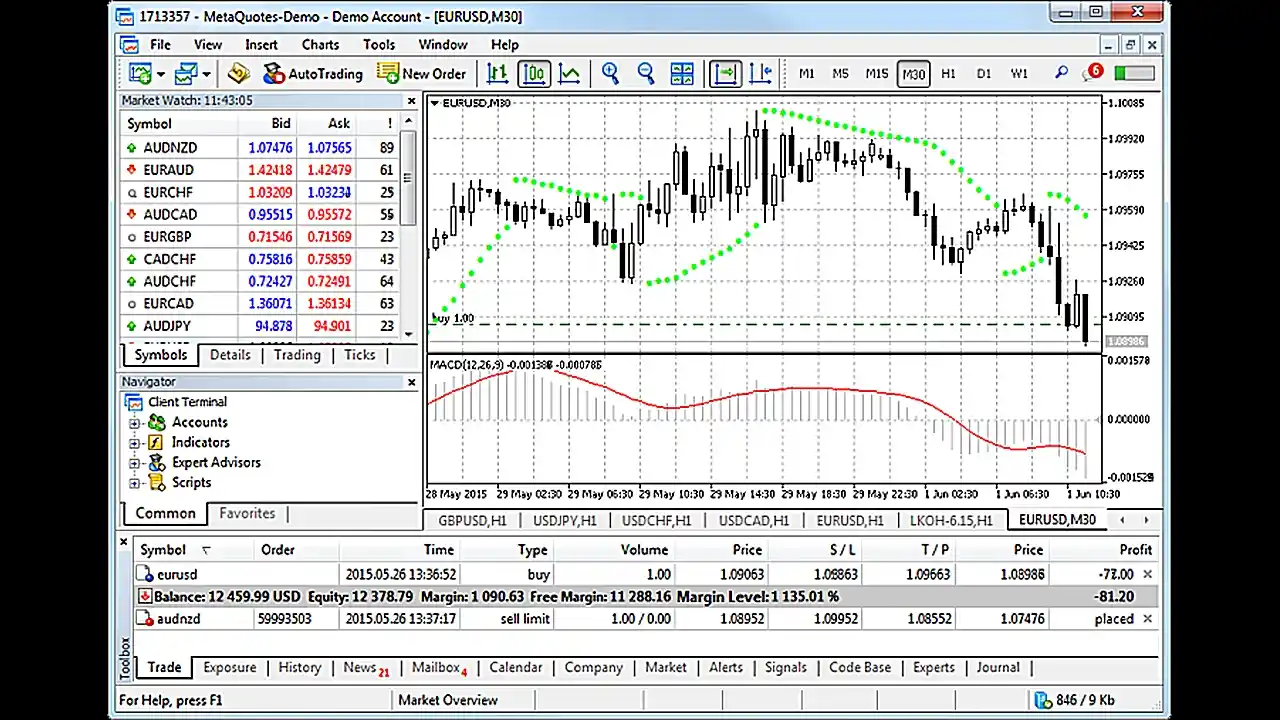
What Is MetaTrader 5?
MetaTrader 5 is a multi-asset trading platform that lets you trade forex, stocks, futures, and CFDs from a single interface. Think of it as your trading command center: charting, analysis, order execution, and even algorithmic trading all live under one roof.
Where many platforms specialize in a single market, MT5 was built from the ground up to handle multiple asset classes. That means you can monitor a forex pair, analyze a stock chart, and check commodity futures without toggling between apps or browser tabs.
Who Developed MT5 and Why It Matters
MT5 was developed by MetaQuotes Software, the same company behind MetaTrader 4. MetaQuotes has been building trading infrastructure since 2000, and their platforms power hundreds of brokers globally.
Why should you care? Because a developer’s track record directly shapes platform reliability, update frequency, and broker adoption. When virtually every major retail broker supports your platform, you gain real flexibility. If you ever decide to switch brokers, your MT5 skills, templates, and custom setups travel with you.
MT5 vs MT4 – Key Differences at a Glance
If you’re coming from MT4, you’re probably weighing whether the upgrade is worth the effort. Here’s a comparison focused on the differences that actually affect daily trading:
Feature | MT4 | MT5 |
Asset Classes | Primarily forex and CFDs | Forex, stocks, futures, options, CFDs |
Timeframes | 9 | 21 |
Technical Indicators | 30 built-in | 38 built-in |
Pending Order Types | 4 | 6 |
Economic Calendar | No (requires plugin) | Built-in |
Depth of Market | Basic | Full DOM with trade data |
Strategy Tester | Single-threaded | Multi-threaded with multiple currencies |
Programming Language | MQL4 | MQL5 (object-oriented) |
The short version: MT5 is not simply an update to MT4. It’s a broader, more capable platform altogether. If you only trade forex, MT4 still gets the job done. But if you want access to more markets, sharper analytical tools, and faster backtesting, MT5 is the stronger pick.
So what exactly are those capabilities? Let’s break them down.
MetaTrader 5 Core Features Breakdown
A trading platform is only as useful as its tools. MT5 packs a serious amount into its interface, but not every feature carries equal weight for every trader. Here’s what matters most, and why.
Multi-Asset Trading Capabilities
This is where MT5 pulls away from its predecessor most clearly. You can trade forex, stocks, futures, options, and CFDs all within the same platform. Your broker determines which specific instruments are available, but the infrastructure supports virtually any tradable asset.
In practical terms, that means one login, one chart setup, one set of tools, no matter what market you’re trading. If you’re the kind of trader who watches EUR/USD in the morning and shifts to equity indices by the afternoon, MT5 keeps everything consolidated.
Charting Tools and Timeframes
MT5 gives you 21 timeframes, ranging from one-minute charts up to monthly views. That’s more than double what MT4 offers, and the difference becomes obvious when you need granular control over your analysis.
You also get multiple chart types (candlestick, bar, line) and the ability to open unlimited chart windows. Want to compare four currency pairs across three timeframes at once? MT5 handles that without slowing down.

Built-In Technical Indicators and Objects
Out of the box, MT5 comes loaded with 38 built-in technical indicators and 44 analytical objects: trendlines, channels, Fibonacci tools, shapes, and more. That’s a solid toolkit before you ever download a thing.
If the built-in selection doesn’t cover your needs, MT5 also supports custom indicators. The MQL5 community and marketplace offer thousands of additional options, many of them free, that you can install in just a few clicks.
Algorithmic Trading with Expert Advisors (EAs)
Ever wanted your trading strategy to run on autopilot? Expert Advisors are how MT5 makes that possible. EAs are automated trading programs that execute trades based on rules you define, or rules someone else has coded and shared.
The MQL5 marketplace has a wide selection of pre-built options. But if you do code, MQL5’s object-oriented language gives you considerably more flexibility than MQL4 ever offered. MT5 also includes a multi-threaded strategy tester, letting you backtest EAs across multiple currency pairs simultaneously. That alone saves significant time compared to MT4’s single-threaded approach.
Economic Calendar and Fundamental Data
One of the quieter but genuinely useful additions in MT5 is the built-in economic calendar. It lives inside the platform, showing upcoming events, forecasts, previous values, and actual results as they drop.
If you combine technical and fundamental analysis, this is a real workflow upgrade. You can see at a glance whether a high-impact news event is approaching before you commit to a trade, helping you manage risk more deliberately.
Depth of Market (DOM)
Depth of Market reveals the buy and sell orders sitting at different price levels, giving you a window into supply and demand beyond the current bid/ask spread. If you trade futures or stocks, DOM can be a valuable lens for reading short-term order flow.
For forex traders, DOM data tends to be more limited because the market is decentralized. Still, it provides useful context depending on your broker’s liquidity setup.
With a clear picture of what’s under the hood, let’s get MT5 up and running on your device.
How to Download and Install MetaTrader 5
Getting MT5 onto your device is straightforward, regardless of whether you prefer desktop, mobile, or browser-based trading.
Desktop Installation (Windows and Mac)
For Windows:
- Visit your broker’s website or the official MetaTrader 5 download page
- Download the MT5 installer (.exe file)
- Run the installer and follow the on-screen prompts
- Launch MT5 once installation completes
For Mac:
There is no native macOS version of MT5. The platform is a Windows application, and running it on a Mac requires a compatibility layer. MetaQuotes provides a Wine-based installer through some brokers that automates much of the setup process, wrapping the Windows version so it can run on macOS.
Check your broker’s download page for a Mac-compatible installer. If one isn’t available, your broker may provide instructions for running MT5 via PlayOnMac or a similar Wine-based tool. The experience is generally functional, though performance and stability can vary depending on your Mac hardware and macOS version.
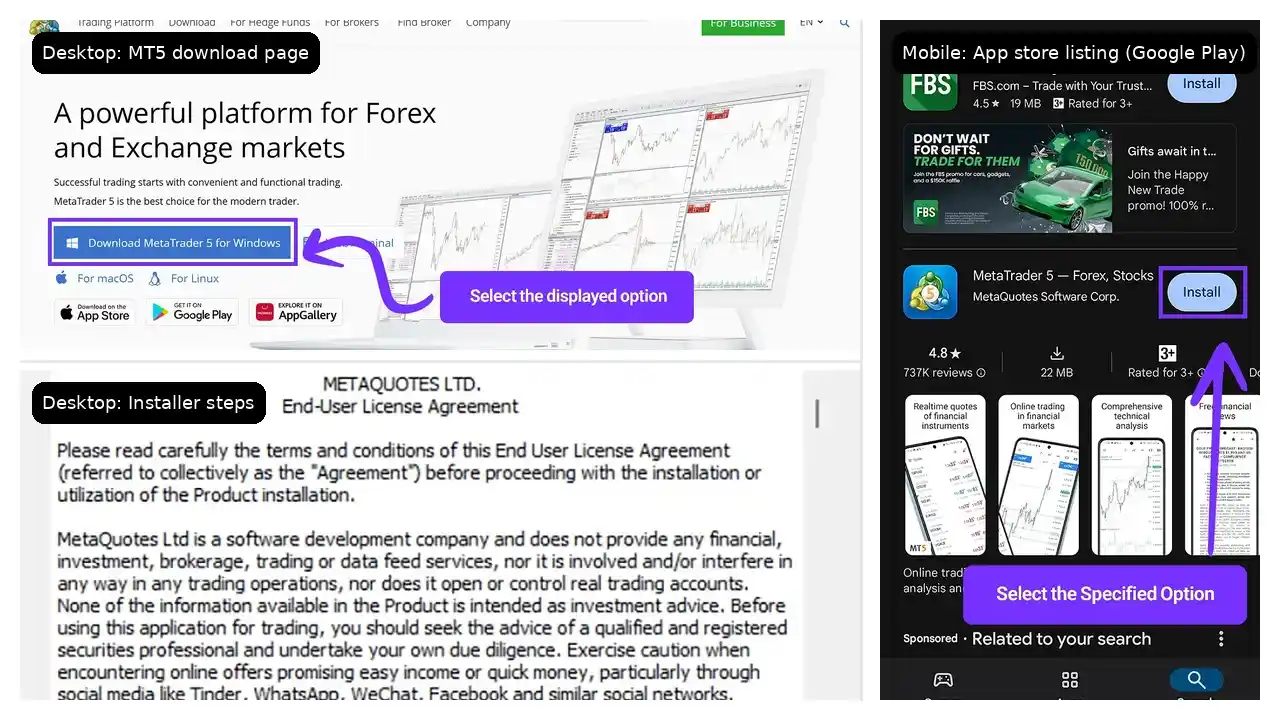
Mobile App Setup (iOS and Android)
- Open the App Store (iOS) or Google Play Store (Android)
- Search for “MetaTrader 5”
- Download and install the official app by MetaQuotes
- Open the app and log in with your broker credentials
The mobile app gives you access to charting, order placement, and account management on the go. It’s not a full replacement for the desktop version (you’ll miss some advanced features like the strategy tester), but it’s more than capable for monitoring positions and executing trades away from your desk.
MT5 WebTrader – Browser-Based Access
MT5 WebTrader runs directly in your browser. Most brokers that offer MT5 provide a WebTrader link on their website. Log in with your account credentials, and you’re trading.
WebTrader supports core functions like charting, order execution, and technical indicators. The tradeoff is that you won’t have access to Expert Advisors or custom indicators, since those require the desktop installation. For quick access or trading from a shared computer, though, it does the job well.
With the platform installed, you’ll need to connect it to a trading account.
How to Set Up Your MT5 Trading Account
Having MT5 installed is only half the equation. You need a broker account linked to the platform before anything meaningful happens. Here’s how to get connected.
Connecting Your Broker Account
MT5 connects to your broker’s servers, which means you need an active account with a broker that supports MT5. If you don’t have one yet, you’ll need to sign up with a broker that offers MT5 access (most major brokers do).
Once you have your account credentials (login number, password, and server name), connecting takes just a moment.
Navigating the Login Process
- Open MT5 on your device
- Go to File > Login to Trade Account (on desktop) or tap the accounts icon (on mobile)
- Enter your login number and password
- Select the correct server from the dropdown (your broker provides this)
- Click Login
If your credentials are correct and the server is reachable, you’ll see your account balance appear and the Market Watch panel populate with tradable instruments. If you get a connection error, double-check your server selection. Brokers often maintain separate servers for demo and live accounts, and picking the wrong one is the most common stumble.
Choosing Between Demo and Live Accounts
If you’re new to MT5, or new to trading entirely, starting with a demo account is the smartest move you can make. A demo account gives you the full MT5 experience with virtual funds, so you can learn the interface, test strategies, and make mistakes without putting real capital at risk.
Most brokers let you open a demo account in minutes, often directly from within MT5 itself. When you feel confident navigating the platform and executing trades consistently, transitioning to a live account is as simple as logging in with your live credentials.
You’ve got the platform installed and your account connected. Now for the part that actually matters: placing a trade.
How to Place Your First Trade on MT5
Staring at the MT5 order window for the first time can feel like a lot. But once you understand what each field does, the process becomes second nature quickly. Let’s walk through it.
Understanding the Order Window
To open the order window, you can:
- Double-click a symbol in your Market Watch panel
- Right-click on a chart and select Trading > New Order
- Use the keyboard shortcut F9
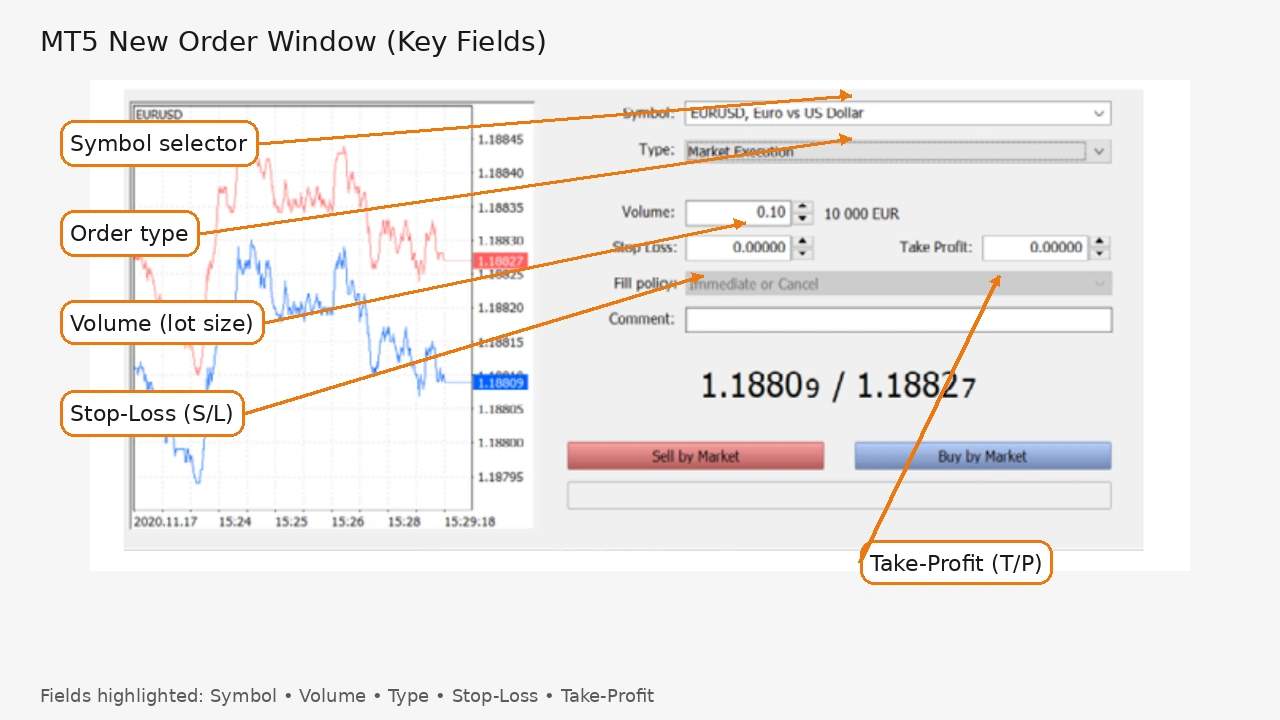
The order window presents several key fields:
- Symbol – the instrument you want to trade
- Type – the kind of order (market or pending)
- Volume – your position size in lots
- Stop Loss – your protective exit price if the trade moves against you
- Take Profit – your target exit price to lock in gains
- Comment – an optional note for your records
Market Orders vs Pending Orders
A market order executes immediately at the current available price. You click “Buy” or “Sell,” and the trade opens right then. This is the most common order type for traders who want to act on current market conditions.
A pending order sets up a trade that only triggers when price reaches a level you specify. MT5 offers six pending order types:
- Buy Limit – buy at a price below the current market
- Sell Limit – sell at a price above the current market
- Buy Stop – buy at a price above the current market
- Sell Stop – sell at a price below the current market
- Buy Stop Limit – places a buy limit order once a buy stop price is hit
- Sell Stop Limit – places a sell limit order once a sell stop price is hit
If you’re just starting out, market orders and basic limit/stop orders will cover most situations. The stop-limit combinations are more advanced tools you can explore as your trading develops.
Setting Stop-Loss and Take-Profit Levels
Every trade you place should have a stop-loss. This is fundamental risk management. Your stop-loss defines the maximum you’re willing to lose on a single trade. Your take-profit defines where you want to exit with a gain.
In the order window, enter your desired price levels in the Stop Loss and Take Profit fields before executing. You can also set or adjust them after the trade is open by right-clicking the position in your Trade tab and selecting Modify or Delete.
One habit worth building early: decide your stop-loss and take-profit levels before you open the order window. Walking in with a plan keeps emotion out of the decision.
Modifying and Closing Trades
Once a trade is open, you’re not locked in. To modify your stop-loss or take-profit, right-click the position in the Trade tab at the bottom of MT5 and select Modify or Delete. Update your levels and confirm.
To close a trade manually:
- Double-click the open position in the Trade tab to bring up the order window, then click Close
- Right-click the position and select Close Position
- Click the small “x” next to the trade in the Trade tab
MT5 also lets you partially close a position by specifying a smaller volume than the full size. This comes in handy when you want to take partial profits while letting the rest of the position run.
With trades under your belt, you’ll want to make the platform feel like your own.
Customizing Your MT5 Workspace
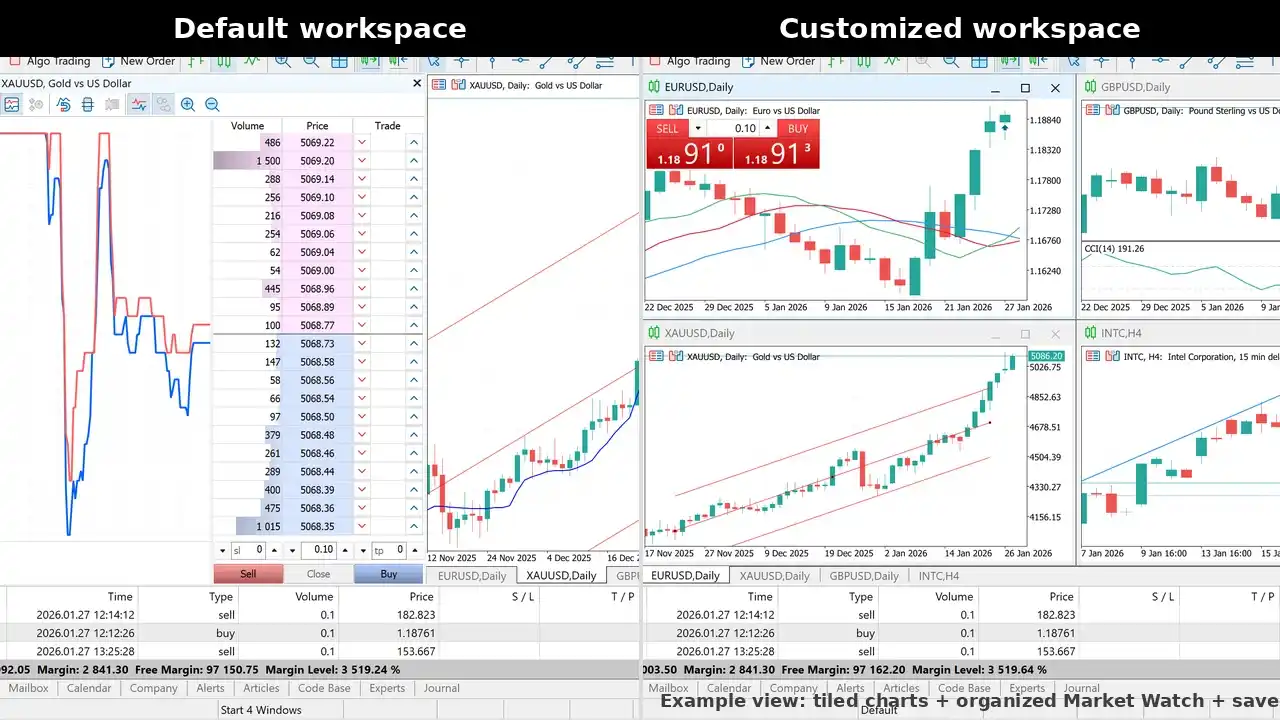
The default MT5 layout is functional, but it’s built for everyone. Spending even a few minutes personalizing your workspace pays off every session. You’ll find tools faster and stay focused on what matters to your trading style.
Chart Layouts and Templates
MT5 lets you arrange chart windows however you want: tile them, stack them, or float them across multiple monitors. Once you land on an arrangement that works, save it as a profile (File > Profiles > Save As) so you can reload it instantly.
You can also save individual chart configurations as templates. A template remembers the chart type, applied indicators, colors, and timeframe. If you always trade EUR/USD with the same indicator setup, a saved template means you never reconfigure from scratch.
Adding and Configuring Indicators
To add an indicator to a chart:
- Open the Navigator panel (View > Navigator or Ctrl+N)
- Expand the Indicators folder
- Drag your chosen indicator onto the chart, or double-click it
- Adjust the settings in the dialog box that appears
- Click OK
You can layer multiple indicators on a single chart and adjust their visual properties (colors, line thickness, periods) at any time by double-clicking the indicator name in the chart’s indicator list.
For custom indicators beyond the default set, the MQL5 marketplace and community forums are solid places to explore.
Creating Watchlists and Alerts
The Market Watch panel is your watchlist. To customize it:
- Right-click in the panel and select Symbols to add or remove instruments
- Drag instruments to reorder them
- Use the search bar at the top to find specific symbols quickly
MT5 also supports price alerts. Right-click on a chart at your target price level and select Trading > Alert. You can configure alerts to trigger via sound, email, or push notification to your mobile device. This is particularly useful when you’re waiting for price to reach a key level but don’t want to sit glued to the screen.
With your workspace dialed in, let’s take an honest look at where MT5 shines and where it falls short.
MetaTrader 5 Pros and Cons
No platform gets everything right, and MT5 is no exception. Here’s a balanced view of what you’ll appreciate and what might frustrate you.
What MT5 Does Well
- Multi-asset support – trade forex, stocks, futures, and more from one platform
- Comprehensive charting – 21 timeframes, 38 indicators, and 44 analytical objects give you serious analytical depth
- Algorithmic trading – Expert Advisors and a powerful strategy tester make automation accessible
- Built-in economic calendar – fundamental data without leaving the platform
- Broker compatibility – supported by most major brokers, so you’re rarely locked out
- Active community – the MQL5 marketplace and forums provide thousands of additional indicators, EAs, and scripts
- Cross-device access – desktop, mobile, and web versions keep you connected anywhere
- Depth of Market – useful for futures and stock traders who want order flow visibility
- Dark theme support – recent builds include a native dark theme across the platform interface, a welcome addition for traders who spend long hours on screen
Where MT5 Falls Short
- Learning curve – the interface can feel overwhelming at first, especially if you’re brand new to trading platforms
- Mac support – there is no native macOS version; the Wine-based compatibility layer works for most users, but the experience isn’t as smooth or stable as on Windows
- Not backward-compatible with MT4 – your MT4 indicators and EAs won’t work on MT5 without conversion to MQL5
- Interface design – while improving with recent updates, the overall visual design still feels dated next to newer platforms
- Broker-dependent features – not all brokers offer the full range of MT5 instruments, so your experience depends partly on who you trade with

These limitations are real, but for most traders, MT5’s feature set more than compensates. The real question is whether it fits your specific situation.
Who Should Use MetaTrader 5?
MT5 covers a wide range of trading needs. Here’s a quick guide to whether it makes sense for you.
MT5 is a strong fit if you:
- Trade (or plan to trade) multiple asset classes beyond just forex
- Want built-in tools for both technical and fundamental analysis
- Are interested in automated trading through Expert Advisors
- Need a platform supported by most brokers so you can switch without relearning everything
- Want a free, fully-featured platform without subscription fees
You might prefer alternatives if you:
- Are deeply invested in MT4 with custom indicators and EAs you don’t want to rebuild
- Prioritize modern, visually polished interfaces over raw functionality
- Only use a Mac and want a fully native application without compatibility layers
- Need advanced social or copy trading features as a core part of your workflow (MT5 has signals, but dedicated copy trading platforms tend to offer more depth)
For the majority of beginner to intermediate traders who want a capable, widely supported platform, MT5 is a solid choice. It delivers where it counts: reliable execution, comprehensive tools, and the flexibility to grow with you as your trading develops.
Frequently Asked Questions


Comments