


If you’ve spent any time researching forex or CFD trading, MetaTrader 4 has almost certainly crossed your path. But with newer platforms muscling into the space, a fair question hangs over MT4 in 2026: does it still earn that default status, or is it coasting on reputation alone?
This MetaTrader 4 review and guide covers what the platform does well, where it falls short, how to get it running from scratch, and how copy trading works within its ecosystem. You’ll finish with a clear sense of whether MT4 belongs in your trading toolkit.
Risk Disclaimer: Trading forex and CFDs involves significant risk of capital loss. The information in this guide is educational and should not be treated as financial advice. Only trade with money you can afford to lose.
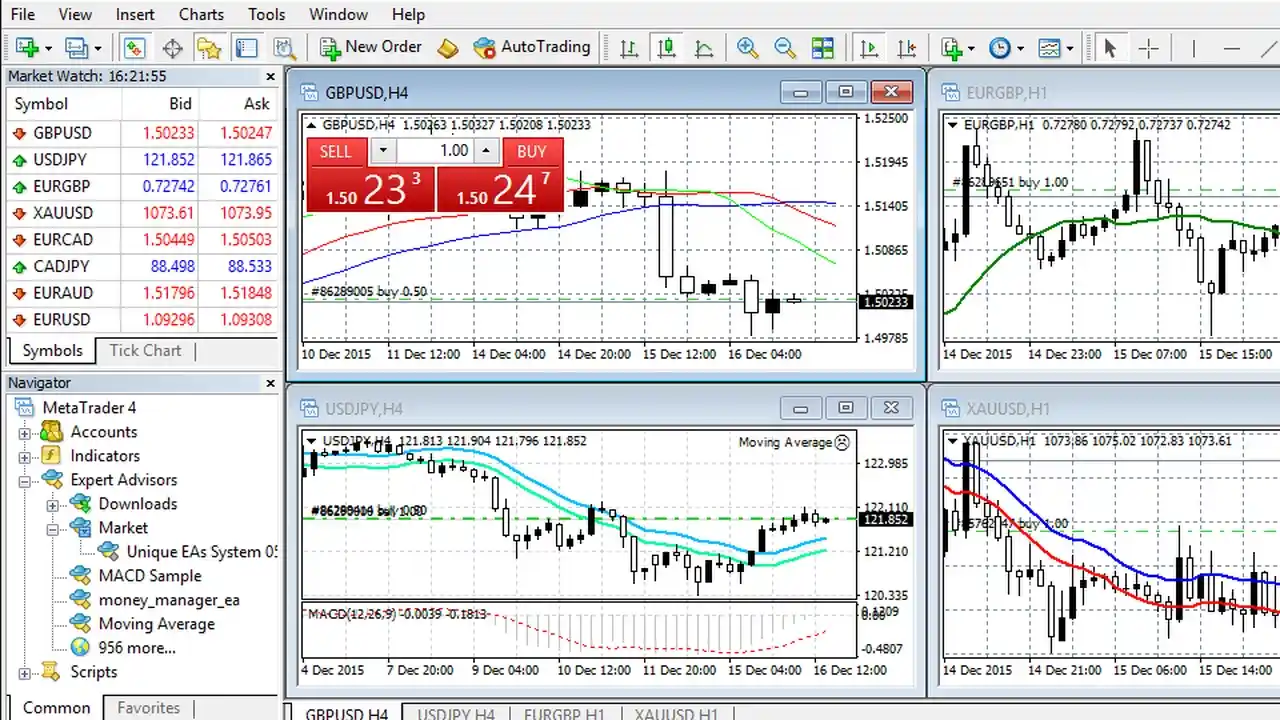
What Is MetaTrader 4?
MetaTrader 4 (MT4) is a trading platform built by MetaQuotes Software, designed primarily for forex and CFD trading. It bundles price charts, technical analysis tools, automated trading through Expert Advisors, and trade execution into a single interface. Think of it as your trading cockpit: the place where you analyze markets, place orders, and manage positions.
One thing worth clarifying early: MT4 is the software layer that sits between you and your broker’s servers. You download it, connect it to a broker account, and use it to interact with the markets. This distinction matters because your experience on MT4 depends partly on the platform itself and partly on which broker you connect it to.
A Brief History and Why MT4 Still Dominates
MetaQuotes released MT4 in 2005. Despite launching its successor, MetaTrader 5, five years later, MT4 never faded. The reason is surprisingly simple: MT4 nailed the core experience for retail forex traders, and the ecosystem that grew around it became self-reinforcing.
Thousands of custom indicators, Expert Advisors, and scripts were built using MT4’s MQL4 programming language. Brokers poured resources into MT4 integration. Trading communities formed around it. By the time MT5 arrived with legitimate improvements, the switching costs for the entire industry had become enormous.
In 2026, MT4 remains widely supported by brokers and is still the platform most beginners encounter first. MetaQuotes has shifted development focus toward MT5, which means MT4 no longer receives major updates. But “not actively updated” and “broken” are very different things. The platform remains stable, functional, and deeply supported by its community.
Yet, MT4 is not quite living on legacy alone: it’s a mature product that handles a specific set of tasks very well, even if it’s no longer pushing boundaries.
Who Is MT4 Best Suited For?
MT4 fits best for forex and CFD traders who value simplicity, stability, and access to a massive library of third-party tools. If you’re a beginner learning to read charts and place trades, MT4’s interface is approachable enough to get you started without burying you in features you don’t need yet.
It’s also a strong fit for traders interested in automated trading through Expert Advisors. MT4’s EA ecosystem is the largest and most battle-tested in retail trading. And if copy trading appeals to you, MT4 connects directly to the MQL5 Signals service, giving you a built-in path to follow other traders’ strategies.
Where Does MT4 Fall Short?
If you need broad asset class coverage beyond forex and CFDs, require advanced order types, or want a platform built with modern technology, MT4’s constraints will become apparent fairly quickly. But for its core use case, it still delivers.
Now that the foundations are in place, let’s look at the features that actually matter when you’re using MT4 day to day.
MetaTrader 4 Key Features Reviewed
The real test of any trading platform is how those features hold up when you’re making decisions with real money on the line. Here’s what MT4 brings to the table and where it genuinely performs.
Charting Tools and Technical Indicators
MT4 ships with 30 built-in technical indicators and 9 timeframes ranging from one minute to monthly. That might sound modest next to platforms boasting hundreds of indicators, but consider this: most traders rely on only a handful of indicators consistently. MT4 covers the essentials (Moving Averages, RSI, MACD, Bollinger Bands, Stochastic Oscillator) without cluttering your workspace.

The charting itself is clean and responsive. You get three chart types (bar, candlestick, and line), and you can open multiple chart windows at once. The drawing tools are basic but functional: trendlines, horizontal lines, Fibonacci retracements, and a handful of shapes.
Where MT4 really stretches its charting capability is through custom indicators. The MQL4 community has produced thousands of free and paid indicators that install with a simple file drop. If the built-in 30 don’t cover your analysis needs, chances are someone has already built what you’re looking for.
Think of MT4’s charting like a reliable workbench. It won’t win design awards, but everything you need sits within arm’s reach, and you can bolt on custom tools whenever you want.
Order Types and Trade Execution
MT4 supports four pending order types alongside instant market execution:
- Buy Limit – placed below current price, triggers when price drops to your level
- Sell Limit – placed above current price, triggers when price rises to your level
- Buy Stop – placed above current price, triggers on an upward breakout
- Sell Stop – placed below current price, triggers on a downward breakout
You can attach Stop-Loss and Take-Profit levels to any order, giving you predefined exit points. Execution speed depends largely on your broker’s infrastructure rather than MT4 itself, but the platform handles order routing efficiently.
One limitation worth flagging: MT4 doesn’t support certain advanced order types found on newer platforms. Trailing stop-losses, for example, run locally on your machine rather than at the server level. That means they only function while the platform is open. If you rely on trailing stops and don’t want to keep your computer running around the clock, this is a meaningful gap.
Expert Advisors (EAs) and Automation
Expert Advisors are MT4’s automated trading programs: scripts written in MQL4 that can analyze markets and execute trades without manual input. This is one of MT4’s strongest differentiators and the feature that keeps many traders loyal to the platform.
You can find EAs ranging from simple alert systems to fully automated strategies in the MQL5 marketplace and across independent developer sites. You can also build your own if you’re comfortable with coding, or hire a developer to create one for you.
Here’s the part that deserves emphasis: An Expert Advisor executes a strategy, and that strategy can lose money just as easily as it can make money. Market conditions shift, and an EA that performed well in backtesting can struggle in live markets. Always test any EA on a demo account before committing real capital.
If you plan to run EAs around the clock, you’ll likely need a VPS (Virtual Private Server) to keep the platform active even when your computer is off.
Mobile and Web Platform Versions
MT4 is available on iOS and Android as a mobile app, and there’s a web-based version accessible through your browser without installing anything. Both give you access to charts, order placement, and account management on the go.
The mobile apps are functional for monitoring positions and placing quick trades, but they’re stripped down compared to the desktop experience. You won’t get the full charting toolkit, and running EAs on mobile isn’t supported. Think of mobile MT4 as your field kit: good for checking in and making adjustments, not for running deep analysis.
The web platform sits between mobile and desktop in terms of capability. It’s useful when you’re on a shared computer or a system where installing software isn’t an option.
Customization with Custom Indicators and Scripts
Beyond EAs, MT4 supports custom indicators and standalone scripts that extend the platform’s functionality. Custom indicators add new analytical overlays to your charts, while scripts perform one-time actions like closing all open trades at once or calculating position sizes.
The MQL4 community is one of MT4’s greatest strengths here. After two decades, the library of available tools is vast. Many are free, shared across forums and the MQL5 code library. Even though MT4’s built-in feature set is relatively fixed, its practical capabilities keep expanding through community contributions.
With a solid understanding of what MT4 offers, the next step is getting it onto your device and ready to trade.
How to Download and Set Up MetaTrader 4
Getting MT4 up and running is one of the more straightforward parts of the process. Here’s how to handle it on each platform.
Downloading MT4 on Desktop, Mobile, and Web
Desktop (Windows):
- Visit your broker’s website and look for their MT4 download link (this is the most common route and ensures you get a version configured for that broker)
- Alternatively, download from the MetaQuotes website directly
- Run the installer and follow the on-screen prompts
- The installation is lightweight, typically under 10 MB
Mac users: MT4 was built for Windows, so native Mac support is limited. Some brokers offer Mac-compatible versions, or you can run MT4 through a compatibility layer like Wine or a virtual machine.
Mobile (iOS/Android):
- Search for “MetaTrader 4” in the App Store or Google Play Store
- Download and install the official MetaQuotes app
- Log in with your broker account details
Web:
- Navigate to your broker’s web trading portal, or use the MetaQuotes web terminal
- Log in with your existing account credentials
- No download required
Creating and Logging Into a Trading Account
Once MT4 is installed, you’ll need a trading account to connect it to. This account comes from your broker, not from MT4 itself. The typical process looks like this:
- Open an account with a broker that supports MT4 (most major forex brokers do)
- Choose between a demo account or a live account during registration
- You’ll receive login credentials: an account number, a password, and a server name
- In MT4, go to File > Login to Trade Account
- Enter your credentials and select the correct server from the dropdown
Start with a demo account. This gives you virtual funds to practice with, letting you learn the platform without risking real money. There’s no disadvantage to spending a few weeks on demo before going live, and the interface is identical to the real thing.
Navigating the MT4 Interface for the First Time
When you first open MT4’s desktop platform, four main panels fill the screen. It can look busy at first glance, but each panel serves a clear purpose:
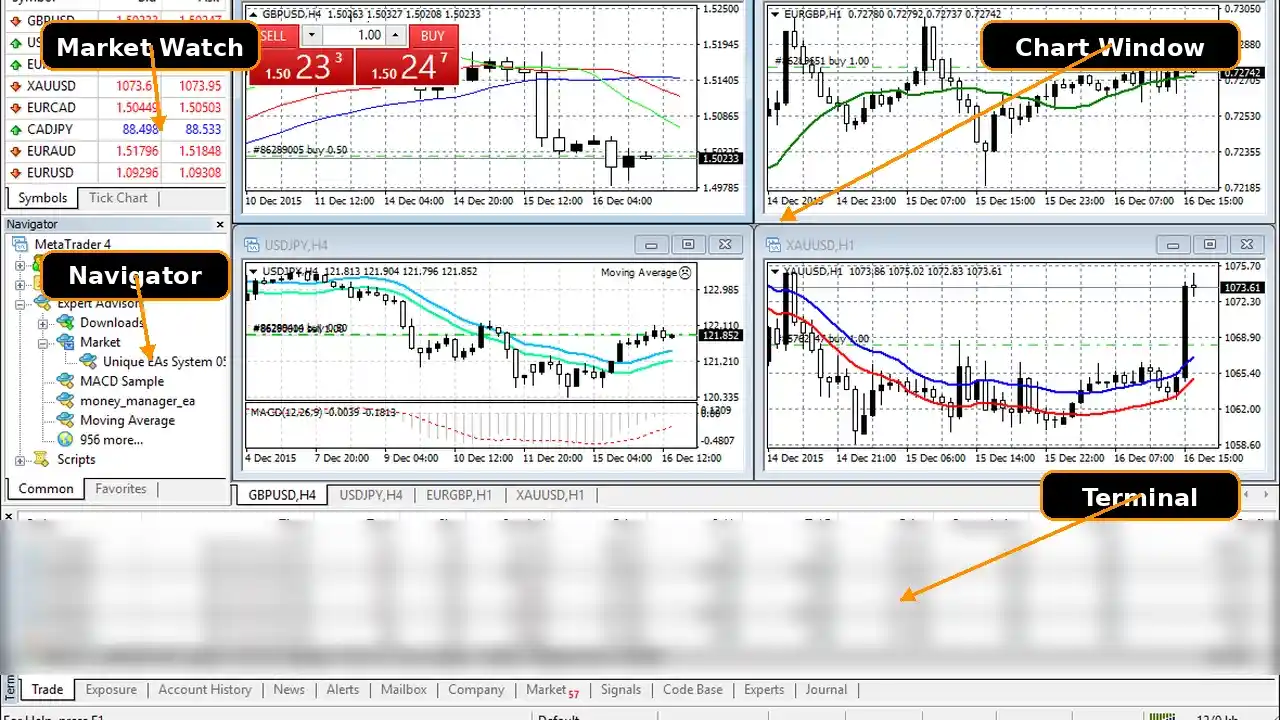
- Market Watch (left side) – Displays a live list of available trading instruments with bid/ask prices. This is where you see what’s available to trade.
- Navigator (left side, below Market Watch) – Houses your accounts, indicators, Expert Advisors, and scripts. Think of it as your toolbox.
- Chart Window (center) – The main workspace for viewing price charts. You can open multiple charts in tabs or tile them across the screen.
- Terminal (bottom) – Shows your open trades, account balance, trade history, alerts, and the MQL5 Signals tab. This is your mission control for managing active positions.
You can resize, hide, or rearrange these panels to suit your preferences. Most traders tweak the layout within their first few sessions once they discover which panels they reference most.
Now that your platform is set up and you can find your way around, let’s walk through the actions you’ll perform most often.
How to Use MetaTrader 4: A Practical Walkthrough
Knowing where things are on the screen is one thing. Using MT4 to trade is where theory meets practice. Let’s step through the core actions you’ll perform regularly, starting with the most fundamental.
Placing Your First Trade
To open a trade in MT4:
- Select the instrument you want to trade from the Market Watch panel (e.g., EUR/USD)
- Right-click and select “New Order,” or press F9
- The New Order window opens with these key fields:
- Symbol – the instrument you’re trading
- Volume – your position size in lots (0.01 is a micro lot, a solid starting point for beginners)
- Stop Loss – your maximum acceptable loss level (optional but strongly recommended)
- Take Profit – your target exit price (optional)
- Type – Market Execution (immediate) or Pending Order
- Click “Buy” or “Sell” to execute
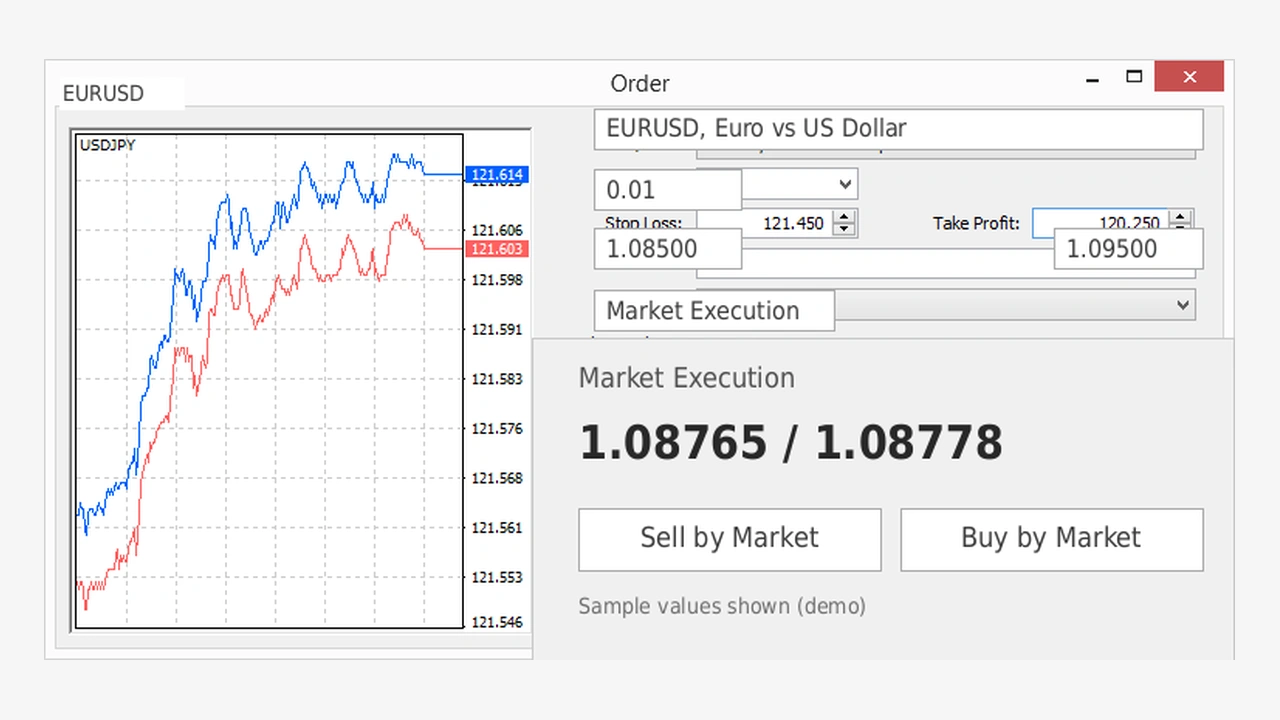
A quick analogy: placing a trade on MT4 is like filling out a short order form at a deli counter. You pick what you want, how much, and any special instructions (your stop-loss and take-profit), then submit. The platform handles the rest.
Setting Stop-Loss and Take-Profit Orders
If you skipped the stop-loss and take-profit fields when placing your trade, you can add them after the fact:
- In the Terminal panel, find your open trade under the “Trade” tab
- Right-click on the trade and select “Modify or Delete Order”
- Enter your desired Stop-Loss and Take-Profit price levels
- Click “Modify”
Why this matters: A stop-loss is your safety net. It automatically closes your trade if the market moves against you beyond a level you’ve defined. Trading without one is like driving without a seatbelt. You might be fine most of the time, but when things go wrong, the consequences escalate fast.
Take-profit works in reverse: it locks in your gains automatically when price hits your target. Together, these two orders define your risk-reward framework for every trade.
Using Charts, Timeframes, and Indicators
Charts are where you’ll spend the bulk of your time on MT4. Here’s how to get the most out of them:
Switching timeframes: Use the toolbar at the top of the chart window. The buttons labeled M1, M5, M15, M30, H1, H4, D1, W1, and MN represent timeframes from one minute to one month. Think of these like zoom levels on a map. Smaller timeframes reveal fine detail (every twist in the road), while larger timeframes show the broader directional picture.
Adding indicators: Right-click on a chart, select “Indicators,” and choose from the list. Alternatively, drag an indicator from the Navigator panel directly onto a chart. Adjust the indicator’s settings in the dialog that appears.
Saving your setup: Once you’ve arranged your charts, timeframes, and indicators the way you like, save it as a template (right-click the chart > Template > Save Template). This lets you apply your preferred setup to any new chart in seconds.
Managing Open Positions and Trade History
Once you have trades running, the Terminal panel’s “Trade” tab becomes your dashboard. It shows:
- All open positions with real-time profit/loss
- Any pending orders waiting to trigger
- Your account balance, equity, free margin, and margin level
To close a trade manually, right-click on it in the Trade tab and select “Close Order.” You can also partially close a position by modifying the volume.
Your complete trade history lives under the “Account History” tab in the same Terminal panel. You can filter by date range and export it as a report, which is useful for reviewing your performance over time.
With the core trading mechanics covered, there’s another dimension of MT4 worth exploring: one that appeals to traders who want market exposure without making every decision themselves.
MT4 Copy Trading: How It Works
Copy trading has become one of the most discussed features in retail trading, and MT4 has its own built-in system for it. But before the idea of following a profitable trader’s moves gets too appealing, it’s worth understanding exactly how the mechanics work and what the real risks look like.
What Is Copy Trading on MetaTrader 4?
Copy trading on MT4 means subscribing to another trader’s signals so that their trades are automatically replicated in your account. When the signal provider opens a trade, your account opens the same trade. When they close, you close.
It’s built directly into the platform through the MQL5 Signals service, so you don’t need third-party software or plugins. The integration is native, which makes setup relatively painless.
A critical distinction worth absorbing: copying another trader’s strategy carries the same market risks as trading on your own. You’re still exposed to the same price movements, drawdowns, and potential losses.
MQL5 Signals Service Explained
The MQL5 Signals service is a marketplace where signal providers publish their trading activity for others to follow. Each provider has a public profile displaying:
- Trading history and performance statistics
- Growth percentage over time
- Maximum drawdown
- Number of active subscribers
- Reliability score
- Monthly subscription cost (some are free, others charge a fee)

You can browse signal providers directly within MT4’s Terminal panel under the “Signals” tab, or visit the MQL5 website for a more detailed view with filtering options.
When evaluating providers, resist the pull of the headline growth number. Pay closer attention to drawdown (how much the account has lost from peak to trough), the number of months they’ve been active, and their consistency over time. A provider showing 500% growth with 80% maximum drawdown tells a very different story from one showing 50% growth with 15% drawdown.
How to Subscribe to a Signal Provider in MT4
Here’s the step-by-step process:
- Open the Terminal panel in MT4 and click the “Signals” tab
- Browse the available signal providers or use filters to narrow your search
- Click on a provider to view their detailed statistics and trading history
- Click “Subscribe” (you’ll need an MQL5.community account, which is free to create)
- Configure your copying parameters:
- Percentage of deposit to use – controls how much of your balance is allocated
- Stop copying if equity drops below – a safety threshold you define
- Confirm your subscription
Your MT4 platform needs to remain running (or connected via VPS) for signals to be copied in real time. If MT4 is closed, incoming signals won’t execute.
Risks and Limitations of MT4 Copy Trading
Copy trading sounds appealing on the surface. Go in with clear expectations:
- No guarantee of profit. Signal providers can and do experience losing periods. You will absorb those same losses.
- Slippage and execution differences. Your trades may fill at slightly different prices than the provider’s, especially during volatile conditions. This can cause your results to diverge from theirs.
- You’re trusting someone else’s judgment. If a provider changes their strategy or takes outsized risks, your account rides along unless you manually intervene or your safety threshold triggers.
- Platform must stay active. Without a VPS, copying stops the moment MT4 closes.
- Limited control. While you can set some parameters, you can’t cherry-pick which specific trades to copy in real time.
The most productive way to approach copy trading is as a learning tool and a supplement, not as a replacement for building your own market understanding.
With a full picture of MT4’s capabilities and copy trading mechanics in hand, let’s weigh the honest pros and cons to help you decide.
MetaTrader 4 Pros and Cons
Here’s a clear-eyed look at what MT4 does well and where it genuinely falls short, so you can decide based on substance rather than hype.
Strengths Worth Knowing
- Massive ecosystem. Thousands of custom indicators, EAs, and scripts are available, most for free. No other retail platform matches this depth of community-built tools.
- Wide broker support. The vast majority of forex and CFD brokers support MT4, giving you flexibility to switch brokers without relearning a new platform.
- Lightweight and stable. MT4 runs smoothly even on older hardware. It’s not resource-hungry, and crashes are rare.
- Beginner-friendly interface. While the design looks dated, the layout is logical and learnable. Most new traders can navigate it comfortably within a few sessions.
- Built-in copy trading. The MQL5 Signals integration means you don’t need external services to access copy trading functionality.
- Strong automation support. The EA framework is mature, well-documented, and backed by a large developer community.
Limitations to Consider
- Aging interface. The visual design hasn’t changed meaningfully in years. It works, but it feels dated beside modern alternatives.
- Limited asset coverage. MT4 was built for forex and CFDs. If you want to trade stocks, options, or crypto natively, you’ll need to look elsewhere.
- Only 9 timeframes. Modern platforms often offer many more. If you rely on non-standard timeframes, this is a genuine constraint.
- No active development. MetaQuotes has shifted focus to MT5. MT4 still functions well, but don’t expect new features or visual overhauls.
- Local trailing stops. As noted earlier, trailing stop-losses require your platform to be running. This is a real operational limitation for certain trading styles.
- Single-thread backtesting. If you test EAs frequently, MT4’s backtesting engine is slower and less capable than MT5’s.
MT4 vs MT5: Which Should You Choose?
This is the question that surfaces in nearly every MT4 conversation. The answer depends more on what you trade than which platform looks better on a comparison chart.
Feature | MT4 | MT5 |
Primary focus | Forex, CFDs | Multi-asset (forex, stocks, futures, options) |
Timeframes | 9 | 21 |
Pending order types | 4 | 6 |
Built-in indicators | 30 | 38 |
Programming language | MQL4 | MQL5 |
Backtesting | Single-threaded | Multi-threaded |
EA/Indicator ecosystem | Massive (20+ years) | Growing but smaller |
Broker support | Very wide | Wide but not universal |
Hedging support | Yes | Yes (added later) |
If you’re trading forex and CFDs exclusively and you value access to the largest library of third-party tools and EAs, MT4 remains a practical choice. The ecosystem advantage is real and carries weight in everyday use.
If you want access to a broader range of markets, more timeframes, better backtesting, and a platform that’s still actively developed, MT5 is the stronger pick looking ahead.
For most beginners starting with forex, either platform will serve you well. MT4’s wider broker compatibility and larger community resources make it a slightly easier entry point, but starting with MT5 won’t set you back either.
Frequently Asked Questions


Comments