


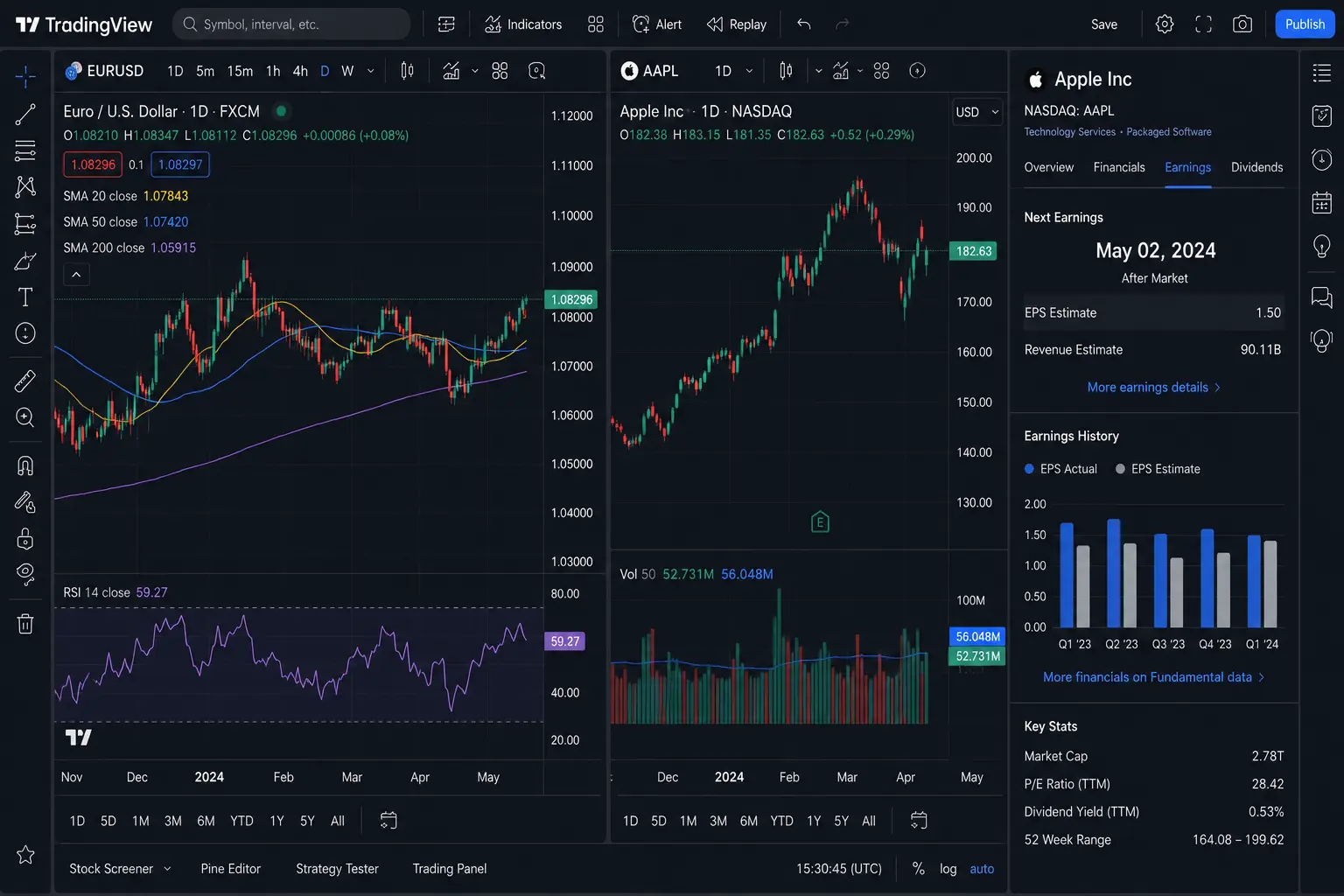
TradingView is one of the most capable research platforms available to retail traders, and most people are using about half of it. This tutorial shows you how to set up TradingView as a unified workspace for both technical and fundamental analysis, and how to run a repeatable workflow that uses both disciplines in the right order.
This article is for educational purposes only and does not constitute financial advice.
What TradingView Does (And What Most Traders Miss)
You already know TradingView draws charts. What you might not know is that it also pulls earnings data, financial statements, economic calendars, and fundamental screener filters, all inside the same platform. If you have been switching between TradingView and a separate research tool to cross-reference fundamentals, there is a good chance you do not need to.
TradingView as a Charting Tool
On the technical side, TradingView is a full-featured charting environment. You get access to hundreds of built-in indicators, drawing tools, multi-timeframe views, custom alert logic, and Pine Script for building your own indicators or strategies. It covers equities, forex, commodities, and more, with tick data, replay functionality, and an interface that does not require a computer science degree to navigate.
For technical traders, the platform delivers everything from basic moving averages and RSI to advanced volume profile tools and custom screener conditions based on price action signals.
TradingView as a Fundamental Research Tool
This is the part most tutorials gloss over. TradingView’s fundamental layer includes:
- Financial statements panel – income statement, balance sheet, and cash flow data, updated quarterly
- Earnings overlay – visualises reported EPS and revenue directly on the price chart
- Economic calendar – tracks macro events and data releases by date and region
- News feed – aggregates financial news per ticker or by market sector
- Screener with fundamental filters – filter stocks by P/E ratio, revenue growth, earnings per share, market cap, and more
The depth here does not match a Bloomberg terminal, and it is worth being honest about that. For the majority of retail trading decisions, though, it covers the core data points you actually need.
The two layers are designed to work together. The next question is how you set up your workspace to take advantage of both.
Setting Up Your TradingView Workspace for Dual Analysis
A cluttered workspace is a slow workspace. Before you run any analysis, it pays to configure your layout so both the technical and fundamental views are immediately accessible without hunting through menus.
Layout and Multi-Chart Setup
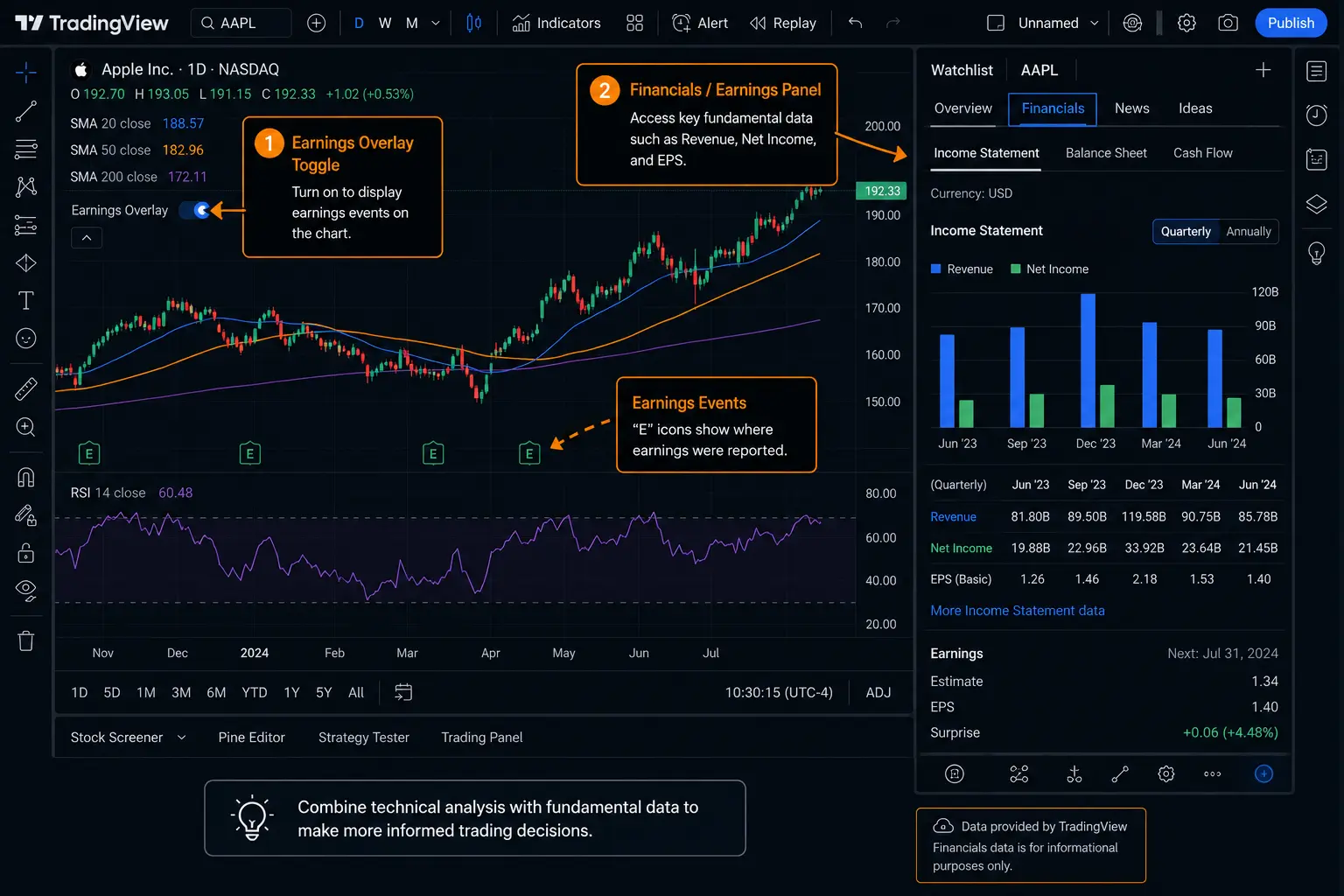
TradingView supports multi-chart layouts on paid plans, letting you display two, three, four, or more chart panels simultaneously on a single screen. To set this up:
- Open any chart in TradingView.
- Click the layout icon in the top toolbar (it looks like a grid of rectangles).
- Select your preferred split. Two charts side by side is a practical starting point for this workflow.
- Sync the charts to the same symbol using the “Symbol sync” option if you want both panels tracking the same ticker across different timeframes.
On the free plan, you are limited to a single chart view. Multi-chart layout unlocks on paid plans.
Pinning Fundamental Data Panels Alongside Charts
Once your chart is open, access the fundamental data panel by clicking on the ticker name at the top left of the chart. This opens a summary panel with tabs for:
- Overview – key statistics and recent performance
- Financials – quarterly and annual statements
- Earnings – EPS estimates vs. actuals, revenue, and analyst forecasts
- Dividends – payout history (where relevant)
Keep this panel open alongside your chart as a persistent reference. For a dual-analysis setup, a practical starting arrangement is one chart panel on the left showing your price chart with technical indicators, and the financials/earnings panel open on the right. The chart and the data occupy the same screen, with no toggling between windows while you work.
Technical Analysis on TradingView
If you have opened TradingView even once, you have seen the technical side. There is a difference, though, between having access to indicators and using them with purpose.
Key Indicators and How to Apply Them
TradingView’s indicator library runs deep. To add an indicator, click the “Indicators” button at the top of any chart and search by name. The most commonly used categories include:
- Trend indicators – moving averages (SMA, EMA), MACD
- Momentum indicators – RSI, Stochastic, CCI
- Volatility indicators – Bollinger Bands, ATR
- Volume indicators – OBV, Volume Profile, VWAP
For each indicator, you can adjust inputs, visual settings, and display conditions through the settings panel that appears when you click the indicator name on the chart. Layer indicators deliberately. Stacking eight oscillators on one chart produces noise.
Drawing Tools, Trendlines, and Price Action Tools
The drawing toolbar on the left side of the chart gives you access to:
- Trendlines and horizontal levels
- Fibonacci retracement and extension tools
- Pitchforks and channels
- Rectangle and shape tools for marking zones
- Text annotations
These are the tools you use to map out support and resistance levels, chart patterns, and structural zones. Once drawn, they stay on the chart and can be toggled on or off. For serious price action work, this is where you will spend a disproportionate amount of your setup time.
Saving Indicator Templates and Chart Layouts
Once you have your indicators and drawing tools configured the way you want them, save the setup. This is the kind of feature that sounds minor until you have rebuilt your workspace from scratch one time too many.
- Chart layout save: Use the save icon in the top toolbar. Your chart, drawings, and indicators are saved to your account and reload automatically next time.
- Indicator templates: After adding your preferred indicators, right-click on any indicator and select “Save indicator set as template.” You can apply this template to any new chart instantly.
Your dual-analysis workspace becomes a one-time setup job.
Fundamental Analysis on TradingView
Most of TradingView’s marketing leads with charts. The fundamental tools are there if you know where to look, and they are more useful than most traders expect.
Accessing Financial Data and Earnings Reports
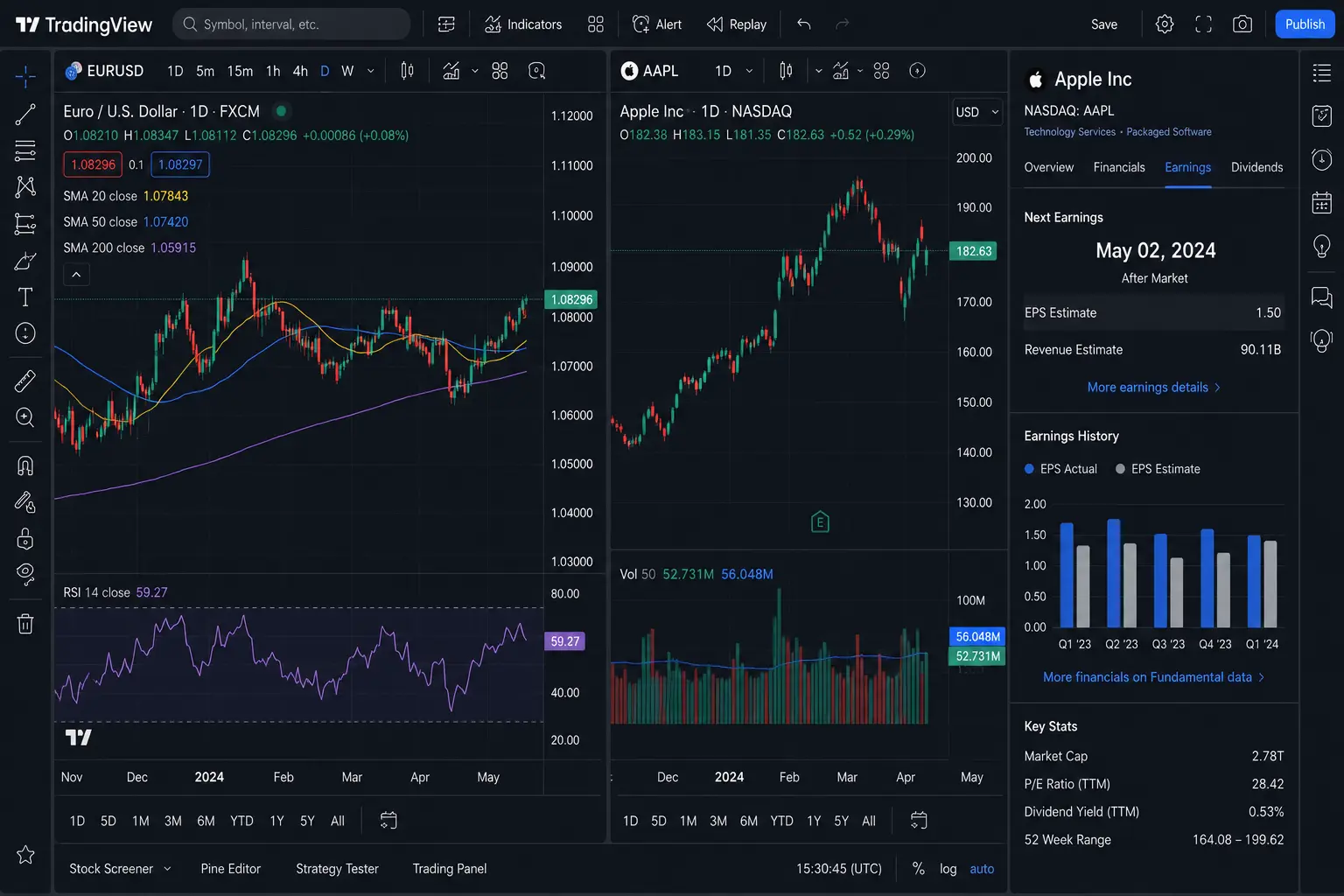
To access a stock’s financial data, click the ticker symbol at the top left of the chart and navigate to the “Financials” or “Earnings” tab. From the “Financials” tab, you can view:
- Revenue and net income by quarter or year
- Operating margins and earnings per share
- Balance sheet structure (assets, liabilities, equity)
- Cash flow from operations
The “Earnings” tab shows historical EPS reports with analyst estimates alongside actuals, and displays estimated earnings dates for upcoming reports. You can also enable the Earnings overlay directly on the price chart, which adds vertical markers at each reported earnings event so you can see how price reacted historically.
Some financial data depth is plan-dependent. Free plan users get limited historical data. Paid plans unlock more extensive historical financials, with the specific depth varying by tier.
Economic Calendar Integration
TradingView’s built-in economic calendar is accessible from the bottom panel of the platform. Click the calendar icon in the bottom toolbar to open it. From here you can:
- Filter events by region (US, EU, UK, etc.)
- Filter by impact level (low, medium, high)
- See scheduled release times and prior readings
- Track events relevant to the instruments you are watching
For forex traders, this is an essential part of the workflow. For equity traders, it surfaces macro events, such as interest rate decisions, employment data, and inflation prints, that regularly move sector-wide positions.
Using the News Feed and Screener for Fundamental Signals
The news feed, accessible from the bottom panel, pulls in recent financial news filtered by your current ticker. It is not a substitute for in-depth research, but it provides fast context when you need to understand why a stock is moving.
The screener is where fundamental analysis in TradingView gets genuinely useful. Open it from the bottom toolbar and switch to “Fundamentals” mode. From there you can filter the entire stock market by criteria including:
- P/E ratio (trailing or forward)
- Revenue growth (year-on-year)
- Earnings per share
- Market capitalisation
- Dividend yield
- Debt-to-equity ratio
This is your top-of-funnel filter. Use the screener to narrow thousands of stocks down to a shortlist of candidates worth examining further, before a single indicator is drawn.
Combining Both Approaches in a Single Workflow
Running technical and fundamental analysis separately is useful. Running them as a sequence is more effective. The two disciplines serve different purposes, and the order matters.
Using Fundamental Data to Filter, Technical Data to Time
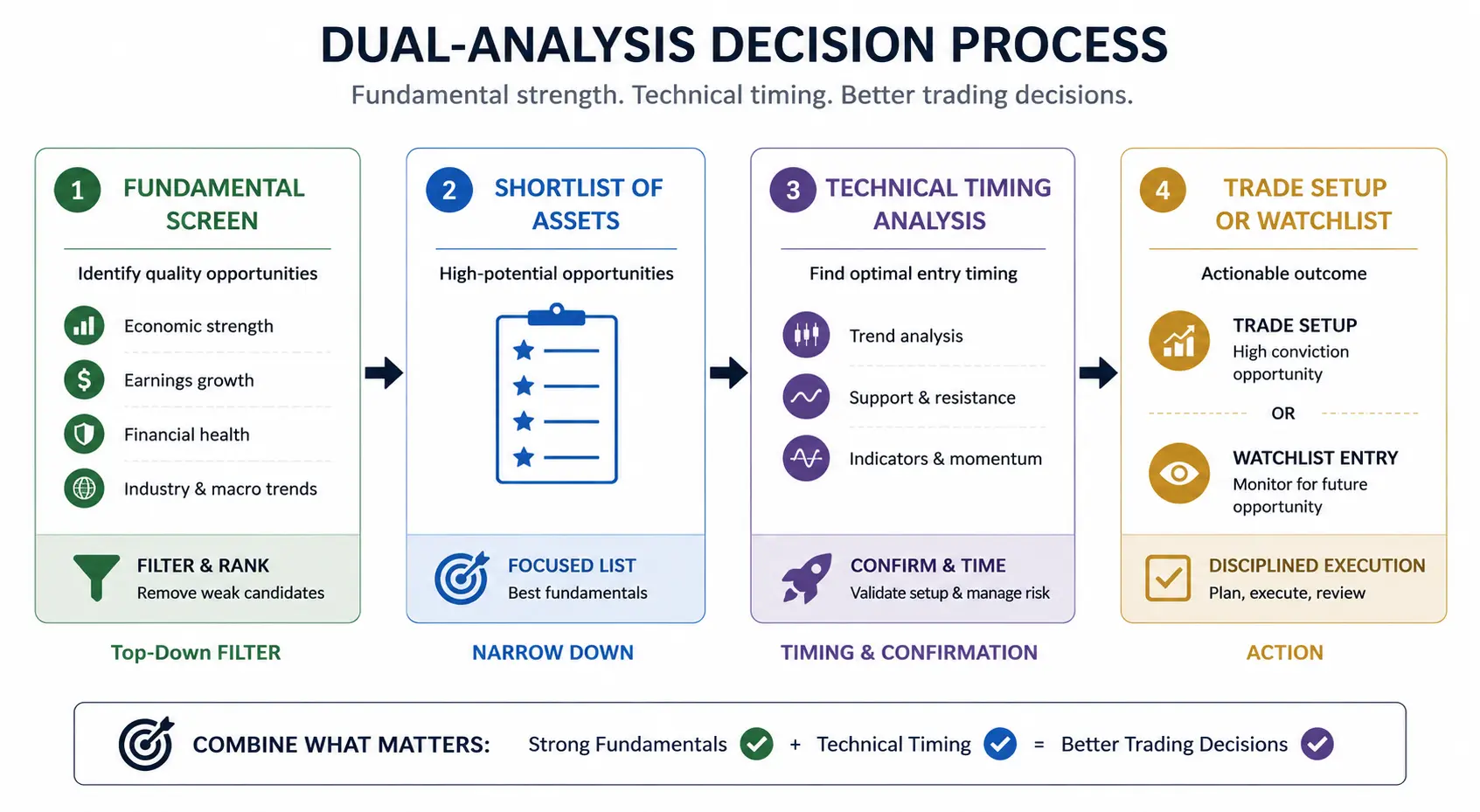
Fundamental analysis tells you which stocks are worth paying attention to. Technical analysis tells you when to act on them.
The logic works like this:
- Fundamentals filter the universe – you screen for stocks with strong or improving financials, upcoming earnings catalysts, or macro conditions that favour a particular sector
- Technicals identify the setup – once you have a shortlist of fundamentally interesting names, you switch to the chart to evaluate trend direction, key levels, momentum, and entry conditions
Applying technical signals to fundamentally weak stocks, or timing entries without looking at the chart, both mean working with incomplete information. Using both disciplines reduces that gap.
Example Workflow Structure (Step-by-Step)
This is an illustrative process showing how the two layers can work together. It is not a trading strategy and does not imply guaranteed results.
- Open the TradingView Screener and apply fundamental filters. For example, stocks with a P/E below a defined threshold, positive revenue growth over the past year, and an upcoming earnings event within the next 30 days.
- Review the shortlist and click through to each candidate’s earnings and financials panel. Eliminate any where the revenue or margin trend does not support the screener result.
- Pull up the price chart for the remaining candidates. Assess the trend: is the stock in a clear uptrend, a defined range, or in breakdown territory?
- Apply your technical indicators and check for confluence between key moving averages, support/resistance levels, and momentum readings (RSI, MACD).
- Check the economic calendar for any macro events scheduled in the same window as your planned trade timeframe.
- Set alerts on technical conditions using TradingView’s alert system: price crossing a level, RSI reaching a threshold – so you are notified when the setup triggers rather than watching the screen continuously.
- Review the news feed for the ticker before execution to confirm there are no unpriced headline risks visible.
Pine Script can extend this workflow further by building custom indicators or alerts that combine fundamental data conditions with technical triggers, though that goes beyond the scope of this tutorial. If you are also evaluating which prop firms support or require TradingView as a platform, our prop firm platform requirements comparison covers that alongside broader broker considerations.
Common Mistakes When Using TradingView for Both Analysis Types
These are the patterns that tend to trip traders up when they first combine both analysis layers.
Treating the screener as the finish line. Strong fundamentals give you candidates, not decisions. A stock can have excellent financials and a chart in freefall. The screener narrows your list. It does not replace the chart read.
Overloading the chart with indicators. More indicators do not produce more insight. They produce more things to justify whatever you already want to do. Start with a small set that serves specific, defined purposes and add only when there is a clear reason to.
Ignoring the economic calendar. Entering a position the day before a high-impact macro event without factoring it in is a common and avoidable mistake. TradingView’s calendar is accessible in seconds. Use it.
Not saving your workspace. Setting up a multi-chart dual-analysis layout and then closing the browser without saving means rebuilding the whole thing next session. Save your layout after setup. Save your indicator templates. This takes 30 seconds and eliminates a source of friction that quietly discourages consistent process.
Confusing available data with verified data. TradingView aggregates financial data, but it is not a primary source. For high-stakes decisions, verify figures against official filings, such as SEC EDGAR for US stocks. The platform is an excellent starting point, not the definitive source.
Switching analysis type mid-process. A common pattern is starting with technical analysis, then rationalising a weak chart using positive fundamental data. Fundamental and technical analysis serve different functions. Keep the sequence intact, and use each layer for the purpose it serves.
Frequently Asked Questions


Comments